Tesla 2026.14 Release Notes
Last updated 17-Apr-2026
Tesla 2026.14 Release notes including "Hey Grok", Pet Mode, Visual Updates, Trips, Sketchpad, Blind Spot Warning Accent Lights, Immersive Sound Upgrade, Music App Queuing, Automatic Software Updates, Dashcam Viewer Updates, Weather Maps Improvements, Keyboard, Rear Display, Security Improvements, Supercharger Pricing Filter, all generated by real cars. Each release note includes a list of the countries, mndels and certain hardware features which apply.
For information on which versions are on specific models and years, see our Trending Tesla releases and statistics for more information.
Release 2026.14
Including 2026.14.1, (0.15 % of cars)
Regional availability of 2026.14 by modelNorth America-----Europe--M3--RoW-----
A more detailed heat map and release statistics are available.
"Hey Grok" (part of 2026.14.1)
Launch Grok by saying "Hey Grok." Go to Grok > Settings to enable. You can also set location based reminders, like "remind me to pick up milk when I'm near home." Say "goodbye" to dismiss.
Seen in AT DE ES GB
Seen on M3(H)
Seen on AP versions AP4
Seen on MCU hardware Ryzen
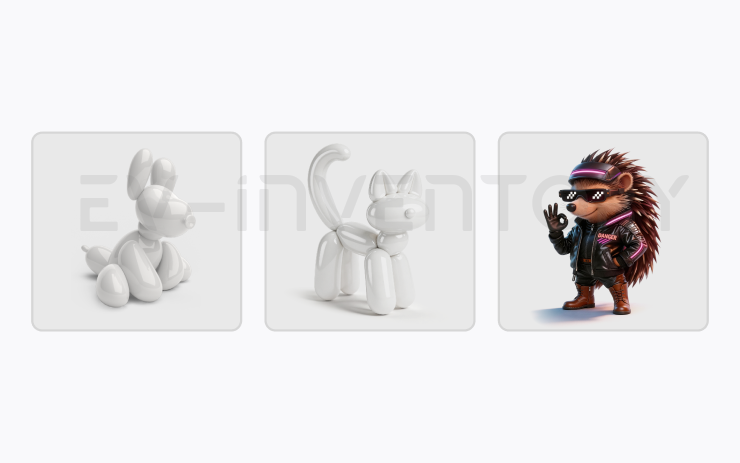
Pet Mode (part of 2026.14.1)
Choose and name your pet by going to Controls > Display > Customize Pet Mode.
Seen in AT BE DE ES GB GR HU SE
Seen on M3(H)
Seen on AP versions AP4
Seen on MCU hardware Ryzen
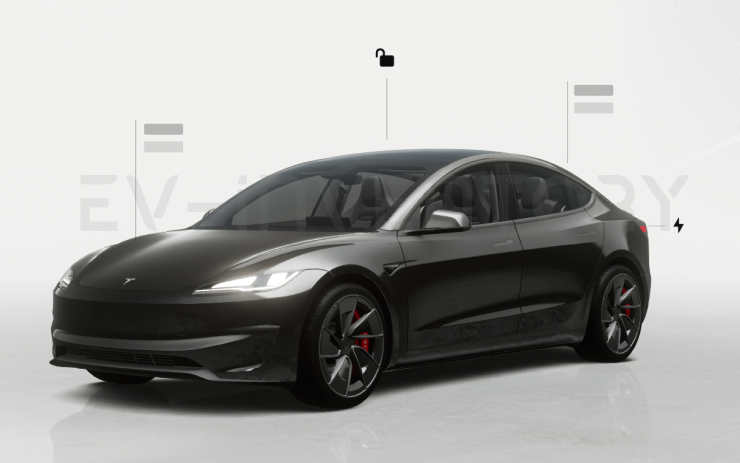
Visual Updates (part of 2026.14.1)
The center display now features higher quality images of your Tesla, and an enhanced park scene environment.
Seen in AT BE DE ES GB GR HU SE
Seen on M3(H)
Seen on AP versions AP4
Seen on MCU hardware Ryzen
Trips (part of 2026.14.1)
Trips are now in the Energy app, where you can create and manage multiple trips to track energy usage across different drives, routes, or conditions. Go to App Launcher > Energy > Trips. For quick access to the Trips Card, swipe left on the Media Card.
Seen in AT BE DE ES GB GR HU SE
Seen on M3(H)
Seen on AP versions AP4
Seen on MCU hardware Ryzen
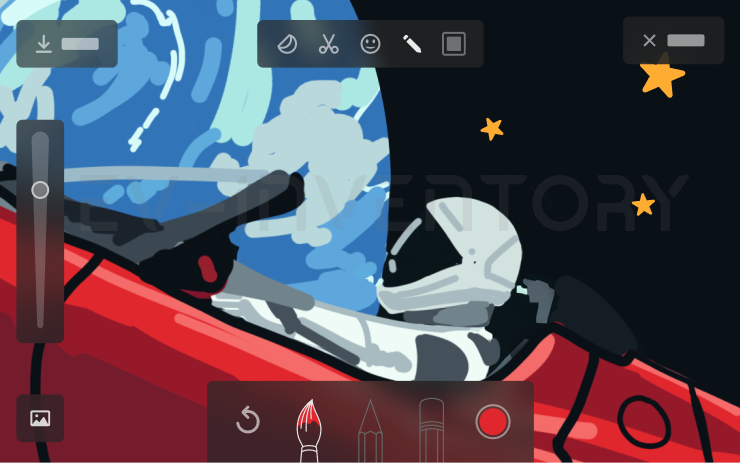
Sketchpad (part of 2026.14.1)
Unleash your inner artist with the enhanced Sketchpad, now supporting stickers and emojis. Save your sketches to access them in the Mobile App and share. Requires Mobile App version 4.55.6 or later.
Seen in AT BE DE ES GB GR HU SE
Seen on M3(H)
Seen on AP versions AP4
Seen on MCU hardware Ryzen

Blind Spot Warning Accent Lights (part of 2026.14.1)
Accent lights now turn red when an object is in your blind spot and your turn signal is engaged, or when an approaching object is detected while parked. To disable, go to Controls > Lights > Blind Spot Warning Accent Lights.
Seen in AT BE DE ES GB GR HU SE
Seen on M3(H)
Seen on AP versions AP4
Seen on MCU hardware Ryzen

Immersive Sound Upgrade (part of 2026.14.1)
Premium Immersive Sound uses advanced sound extraction to place the listener in front of a detailed soundstage within an Immersive space. This enhancement works with all streaming sources.
Go to Settings > Audio > Tone > Immersive Sound to adjust.
Seen in AT BE DE ES GB HU SE
Seen on M3(H)
Seen on AP versions AP4
Seen on MCU hardware Ryzen
Music App Queuing (part of 2026.14.1)
Swipe right on tracks in Apple Music or Spotify to add them to the queue. In Apple Music, tap and hold on a track to add or remove from Favorites. In Spotify, swipe left to add or remove from Liked Songs.
Seen in AT BE DE ES GB GR HU SE
Seen on M3(H)
Seen on AP versions AP4
Seen on MCU hardware Ryzen
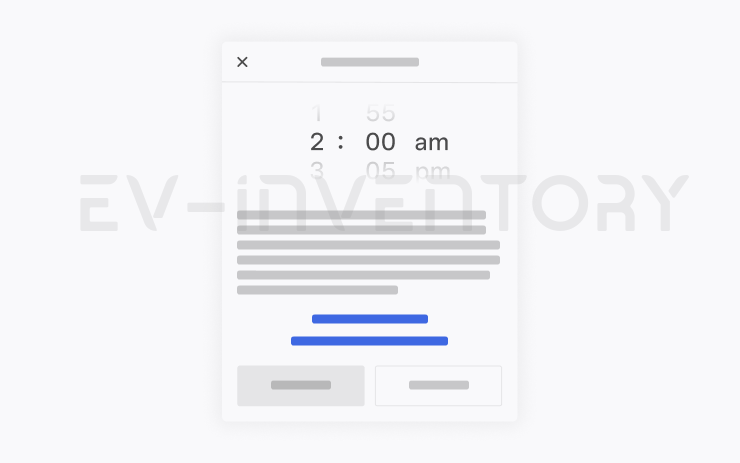
Automatic Software Updates (part of 2026.14.1)
Your Tesla can now automatically install downloaded software updates overnight. When enabled, updates will install while your Tesla is parked and not in use, ensuring you always have the latest features and improvements.
To enable, go to Controls > Software > Automatically Install Updates.
Seen in AT BE DE ES GB GR HU SE
Seen on M3(H)
Seen on AP versions AP4
Seen on MCU hardware Ryzen
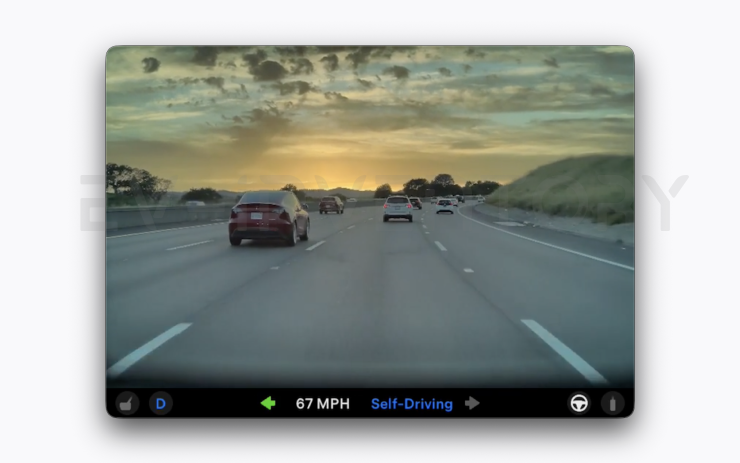
Dashcam Viewer Updates (part of 2026.14.1)
You can save any clip from Recent Dashcam footage for permanent storage on your Tesla or on your phone by going to App Launcher > Dashcam Viewer. To enable viewing on your phone, go to Controls > Safety and turn on View Camera via Mobile App. Clips stay on the vehicle and are never shared to Tesla.
Clips downloaded to your phone now include details such as speed, steering wheel angle, and Self-Driving state. Downloads require Premium Connectivity and Mobile App version 4.55.6 or later.
Seen in AT BE DE ES GB GR HU SE
Seen on M3(H)
Seen on AP versions AP4
Seen on MCU hardware Ryzen
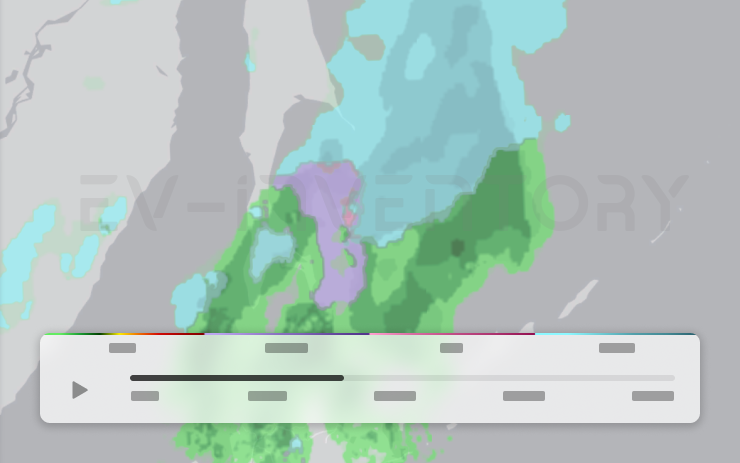
Weather Maps Improvements (part of 2026.14.1)
Weather maps now show snow and rain with improved colors that make it easier to distinguish between precipitation types. You can also view the past hour of weather data to see how conditions have been changing along your route. This feature requires Premium Connectivity. To view, tap the weather icon on the map.
Seen in AT BE DE ES GB GR HU SE
Seen on M3(H)
Seen on AP versions AP4
Seen on MCU hardware Ryzen

Keyboard (part of 2026.14.1)
Your selected keyboard language will also select the language used for dictation. Tap the international keyboard button to change keyboard and dictation language, without changing voice command language. Tap the mic icon in the keyboard to dictate.
Seen in AT BE DE ES GB GR HU SE
Seen on M3(H)
Seen on AP versions AP4
Seen on MCU hardware Ryzen
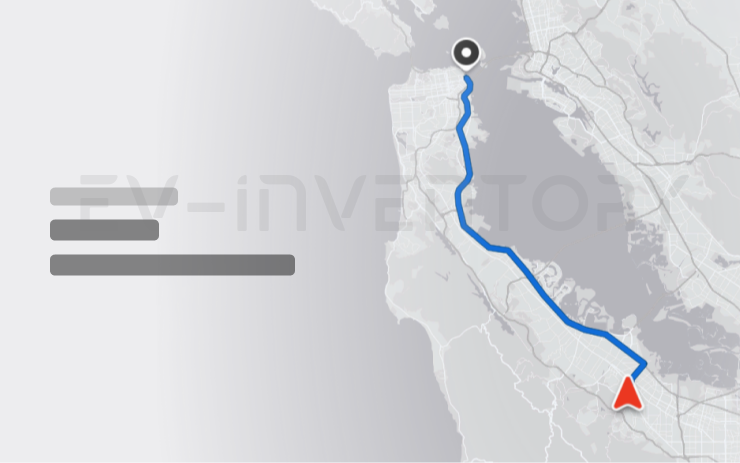
Rear Display (part of 2026.14.1)
Passengers in rear seats can now view and interact with maps on the rear display while your Tesla navigates a route. Tap the maps icon from the rear display to follow along.
Seen in AT BE DE ES GB GR HU SE
Seen on M3(H)
Seen on AP versions AP4
Seen on MCU hardware Ryzen

Security Improvements (part of 2026.14.1)
This update includes important security fixes and improvements.
Seen in AT BE DE ES GB GR HU SE
Seen on M3(H)
Seen on AP versions AP4
Seen on MCU hardware Ryzen

Supercharger Pricing Filter (part of 2026.14.1)
You can now choose to route only to Superchargers with Tesla pricing. When enabled, Trip Planner will avoid locations where Tesla does not set charging prices or accept Free Supercharging credits. This setting requires connectivity with Online Routing enabled.
To enable, go to Controls > Navigation > Trip Planner settings.
Seen in GB
Seen on M3(H)
Seen on AP versions AP4
Seen on MCU hardware Ryzen
Reboot after an update
Lot's of people have random issues after a software install, many of them curing themselves after a reboot. As a general rule, we'd suggest always doing a scroll wheel reboot after a software update, simply press the two steering wheel scroll wheels until the screen turns off and then let go. The screen will come back within a minute or so, depending on hardware. It's certainly worth doing this is you notice any unusual behaviour, but prevention is better than cure. There's a second reset option which is to change the car configuration slightly, either the language, or wheel type. This also causes the car to do a soft reset and this has returned missing features such as Tidal. Our Guide to rebooting your Tesla provides more details.
How to get the latest Tesla Software Update?
In a word, you can't really force it yourself although you can help the car to download the update once it's been allocated to have an update. To do so, connect the car to WiFi, and maybe even consider a wireless hotspot when in use. Car's not connected to WiFi generally do not receive updates quickly.
If you visit the software screen and see the car hasn't checked for a few days, perform a scroll wheel reset. The car typically checks as soon as it reboots and we've had a software update immediately afterwards as a result.
You may find the car sticks at 50% for a while. We've seen reports that keeping the car awake will help speed past past this point as the car will try and sleep and halt the process. Even keeping the mobile phone app open may help to prevent the car sleeping.
Why do I not get some of the features or changes mentioned?
There are a number of reasons why a particular feature or change may not be included when your car upgrades. These include regional restrictions, hardware specific features, model specific updates and some changes are linked to software options purchased such as EAP or FSD. There are also times when software release notes are provided but only Tesla test engineers get the updates.
Not having a listed feature or update for a particular car is therefore quite normal. Some websites try to detail which cars get which features but this is often inaccurate, such as the blended braking update that came out with 2022.16 and the alternate routes option in 2022.28.
Against each release note we now list the car models and countries where a particular release note has been seen.
I thought I already had a listed feature?
Just as a feature may not land in every car, the feature may be mentioned in later releases when your car already has it. The release notes in the car are tuned to your car so, and while in general the car will only report a new feature once, that is not a rule that always holds true. Some websites say the feature is not available in your country whereas the reality is the feature has been there for some time
I'm on the FSD City Streets Beta
The FSD City Streets Beta is usually 2 to 3 releases behind the general software releases. This is normal.
Numbering convention
Release notes are numbered roughly using the a year.family.major.minor format. The year is self explanatory, the family release typically increments in 4's and is roughly the week of the year when the release family is launched, although these tend to slip over the course of the year. The major and minor release numbers of much debated, we personally believe these rarely contain new features not included in the family, and if there are differences it is linked to hardware specific versions.
When reviewing release notes, you may be interested in how a feature has evolved. To enable this we have also included a keyword search where you can search for a word or phrase and we will filter the results accordingly.